Maximo escalations demystified (3/3) Monitoring execution
In the two previous posts (first, second) about escalations we have seen what are escalations and how to tune them. In this post will give you some hints bout how to monitor escalation execution.
We know that escalations are background tasks to execute actions on a specific set of records. Some of these actions may be crucial for maintenance operations so it is very important to monitor the execution of such background tasks and alert the Maximo system administrator in case of failures.
IBM Maximo Knowledge Center describes what system loggers to enable to troubleshoot escalation execution. This can be useful when you already know you have an issue and you need to understand what’s happening. Monitoring logs is not the best option to detect execution failures because we don’t know in advance what to look for in the logs.
Fortunately, Maximo has a nice (and almost undocumented) feature that allows to log escalation execution results in a database table that can be monitored by IT infrastructure monitoring tools like Nagios, Solarwinds, Zabbix, etc.
Another good characteristic of this feature is that it can be enabled selectively on a reduced set of mission critical escalations to reduce alert noise. Everything is well hidden in the ‘Create Successful Execution Entry’ flag in the Escalations application.
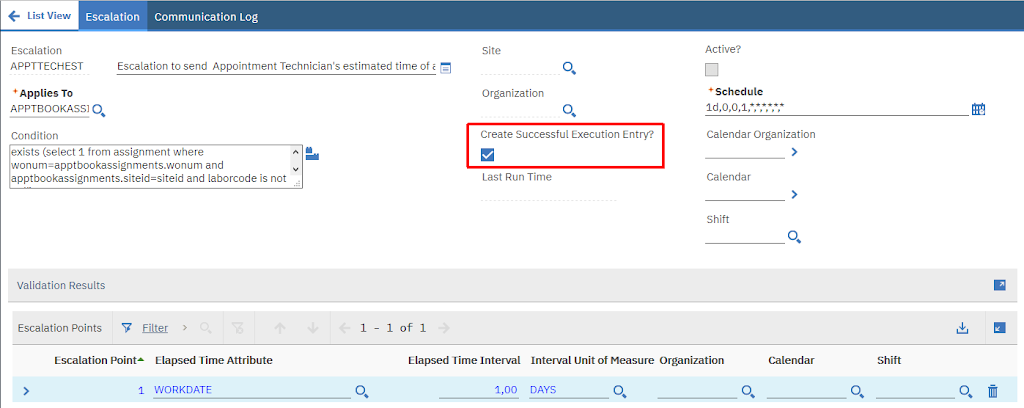
When you check the ‘Create Successful Execution Entry’ checkbox on an active escalation, a row is added to the ESCSTATUS table each time the escalation runs. You can check the content of the ESCSTATUS table by running this table replacing [ESCNAME] with you own escalation.
SELECT * FROM escstatus
WHERE escalation='[ESCNAME]'
ORDER BY statusdate;
Unfortunately there is no user interface in Maximo to display ESCSTATUS table. You can simply add a custom tab in the Escalations application to display child ESCSTATUS records or add a portlet in MAXADMIN’s start center to notify administrators when some escalation is failing. I will demonstrate the second solution hereafter.
Monitoring failures in the Start Center
If you don’t have a monitoring tool you can set up a Result Set to MAXADMIN’s Start Center to list Escalations failed in the last week.

Create the following public query in the Escalations application.
-
Query Name: ESCERROR
-
Description: Escalations in error
-
Public: Yes
-
Where clause: escalation in (select distinct(escalation) from escstatus where status=‘ERROR’ and statusdate>sysdate-7)
Now edit MAXADMIN’s start center and add a Result Set with the following characteristics.
-
Display name: Escalations in error
-
Application: ESCALATION
-
Query: ESCERROR
-
Fields
-
ESCALATION - Escalation
-
DESCRIPTION - Description
-
OBJECTNAME - Applies To
-
SCHEDULE - Schedule
-